


OnePlayer - HD Video Player
4.2519.00 Reviews
App Specs
- Version
- 2.5.4
- Updated On
- License
- Free
- Downloads
- 1,000,000+
- Developer
- Dovi Tools
- Categories
- Video Players & Editors
- Platform
- Android, iOS
Screenshots
 Analysis by AppCompare
I like the idea of a single place for videos, music, casting, and private media, but a player is only useful if it fits the way I actually watch. I’d use OnePlayer - HD Video Player as a practical library and playback tool rather than as a video-editing studio: it is built around enjoying and organizing media, not creating a finished clip. That distinction matters if you are choosing an app to support creative work. It can help with reviewing footage or sharing a viewing session, but it should not be mistaken for an editor with a production timeline.
A useful home for viewing and checking creative work
For a creator, a dependable player can be part of the process even when it does not alter the footage. I find it handy to watch a draft away from the editing screen, check whether subtitles are readable on a phone, or listen for an audio issue through headphones. The value is in getting a fresh view of a file, not in making edits inside the player. If you need trimming, color correction, transitions, or a publish-ready export, I’d pair it with a dedicated editor instead.
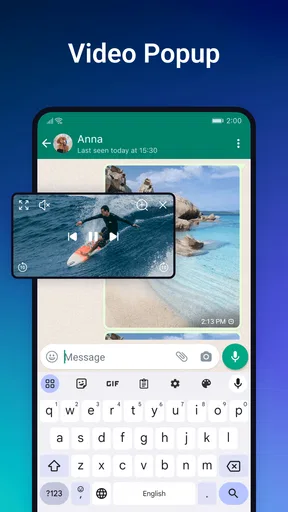
That separation can make a workflow simpler: keep the editing app for changes, then use a player for playback and review. A floating window is particularly useful when I need to compare a clip with notes or keep an eye on a reference while doing something else. It is less suitable for detailed frame-by-frame critique, where a desktop editor or a specialized review tool gives more precise controls.
Where the all-in-one approach helps—and where it doesn’t
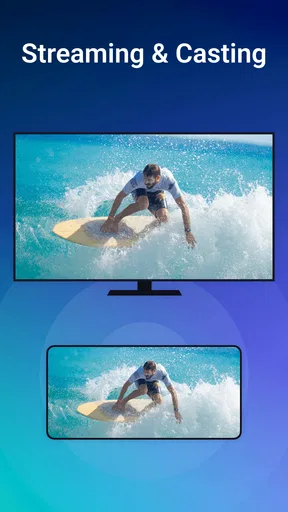
OnePlayer is a video and music player from Dovi Tools in the Video Players & Editors category. The appeal is convenience: instead of switching between separate apps for local viewing, audio, casting, and a protected media area, the app brings those jobs together. That can suit someone who watches personal files regularly and occasionally sends a video to a TV.
The trade-off is that a combined toolbox is not automatically the best choice for every part of the job. A phone’s built-in player may be enough for occasional clips, while a streaming service is more convenient for its own catalog. For editing and publishing, a purpose-built editor is the better fit. I’d choose this app when my priority is handling and watching my own media, not when I need a full creative-production pipeline.
What to check before making it your default
The app is free to install and rated for Everyone, and it has an average rating of 4.1 from around 9,400 ratings, with roughly 500 written reviews. It has passed 1 million installs. Those figures suggest a well-used option, but they don’t tell me whether it will match a particular phone, file collection, or casting setup. I’d try it with a few representative files before moving my whole viewing routine over.
It was released on May 31, 2024, and version 2.4.3 is the current release. It requires Android 7.0 or later. Optional in-app purchases range from $1.99 to $12.99 per item, so I would look at what is offered in the app before paying; the free starting point makes it easy to judge whether its day-to-day features are worthwhile for me.
Worth Reading Before You Choose

Flipboard Shows What News Apps Must Do Beyond the Feed

Switching to Android Auto Means Rethinking Your Driving Routine

Google Calendar Makes a Crowded Week Easier to Manage

Ludo King Makes the Most of the Minutes Between Plans

Baby Panda World Brings Quick Play to Modern Phones, but Its Game Library Feels Busy

ESPN’s Live Game View Makes Following Close Games Easier
A practical test is to open one ordinary clip, one longer file, and a video with subtitles, then check how comfortable playback feels on your device. If subtitles matter to you, spend a minute adjusting their appearance rather than assuming the default will suit every screen. Likewise, try your usual headphones and speakers before deciding the equalizer makes a meaningful difference. These small checks reveal more than installing a player and judging it from the first short video.
Everyday use, privacy, and casting trade-offs
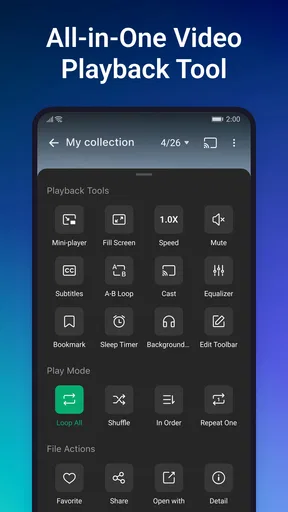
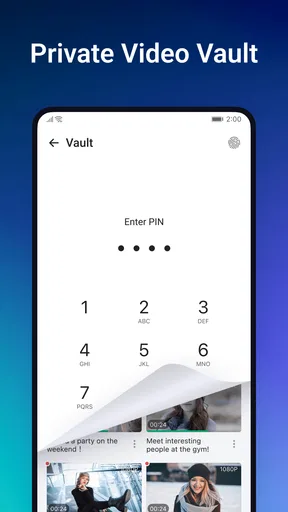
Imagine I get home with a few personal videos on my phone and want to watch one on the living-room TV, then listen to music while replying to messages. Casting and the pop-up player can reduce the app-switching involved in that routine. The secure privacy vault is another useful idea for people who want a more private place for selected media, though I’d treat it as a convenience layer rather than a replacement for careful device security. Before storing anything sensitive, I would check how the vault works in practice and make sure I understand how to retrieve my files.
Casting is also dependent on the equipment and connection involved, so I wouldn’t choose a player solely on the promise of TV playback. Try it with the TV or casting device you already use; if that link is unreliable, the feature will not rescue the experience. For travel or a commute, local playback is the more dependable use case because it does not require sending a video to another screen. If most of your viewing happens through subscriptions, the apps that host that content will usually be the simpler route.
There is a small but important distinction between keeping a private library and managing a professional media archive. The vault may help separate personal clips from casual browsing, but creators handling client material should follow their organization’s storage rules and use tools designed for controlled collaboration when needed. I would not assume that a privacy feature alone makes an app suitable for confidential production files.
Ever stumbled upon an app that just makes you go, "Wow, where have you been all my life?" That's how I felt when I discovered OnePlayer - HD Video Player. This app seems to be the cool kid in town when it comes to video players on Android and iOS. So, let’s dive into what makes this app stand out in the crowded world of video players.
First Impressions and User Interface
Opening OnePlayer - HD Video Player for the first time, I was greeted with a clean, intuitive interface. This isn’t one of those apps that assaults you with a barrage of options and buttons. Nope, it’s simple and straightforward, which I totally appreciate. The design is sleek, with a modern vibe that makes navigation a breeze. Everything feels just where it should be, and honestly, who doesn’t love that?
The main screen offers quick access to your video library, whether it’s stored on your device or in the cloud. Plus, you can customize the look with a few themes, which is a neat touch for those who want a personalized experience. It’s like having a video player that gets your style!
Features That Really Shine
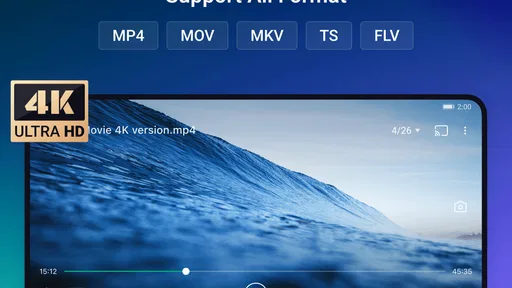
When it comes to features, OnePlayer - HD Video Player packs quite the punch. You know how some apps just have that one killer feature? Well, this one seems to have several. For starters, it supports a wide range of video formats, so you’re not left hanging with unsupported files. No more converting videos just to watch them!
Another cool feature is the subtitle support. It’s robust, allowing you to load subtitles in various formats, and even customize the font, size, and color. Perfect for those movie nights when you’re watching foreign films or just need a little extra help following the dialogue.
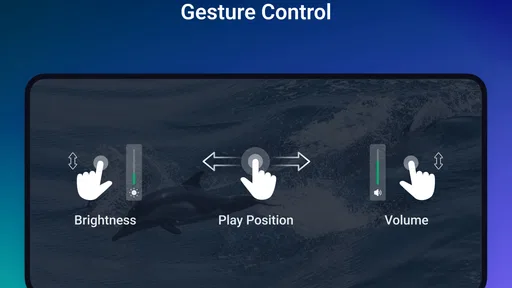
Oh, and did I mention the gesture controls? Swipe up, down, left, or right to adjust volume, brightness, or skip scenes. It’s super intuitive and feels almost like you’re in a sci-fi movie, controlling everything with a flick of your finger.
Performance and Playback Quality
Performance-wise, this app is as smooth as butter. Seriously, playback is flawless, even with large HD files. I didn’t experience any lag or stuttering, which is a big win because nothing ruins a viewing experience faster than a video that keeps buffering.
The app also supports hardware acceleration, which means it leverages your device’s hardware to improve performance and save battery life. And let's be honest, who doesn't love more battery life?
Additional Perks Worth Mentioning
So, what else does OnePlayer - HD Video Player bring to the table? Well, it has a built-in equalizer, allowing you to tweak audio output to your liking. You can fine-tune the sound to match your headphones or speakers, which is music to the ears of any audiophile.
There’s also a handy feature that lets you play videos in a pop-up window. This means you can watch your favorite shows while texting, browsing, or multitasking. It’s like having a mini TV screen floating on your phone!
Final Thoughts
All in all, OnePlayer - HD Video Player is a solid choice for anyone in need of a reliable, feature-packed video player. Whether you’re a casual viewer or a video aficionado, this app has something for everyone. The design is user-friendly, the performance is top-notch, and the features are genuinely useful.
So, if you’re tired of your current video player or just want to try something new, give OnePlayer a shot. It might just become your go-to app for all things video. Happy viewing!
Who is most likely to appreciate it?
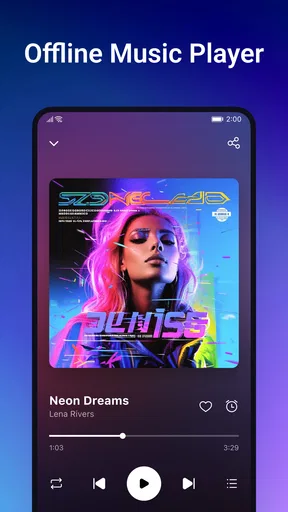
I’d recommend trying it if your phone has a growing collection of downloaded clips, music, or family videos and the default player feels too limited. The combination of subtitles, playback gestures, a floating window, casting, and a private vault is most compelling for someone who moves between different kinds of media rather than relying on one streaming service. It also makes sense for a frequent traveler who wants to keep files available offline and watch them without opening a laptop.
I would skip it if your main goal is to produce videos, add captions to a finished edit, or send review links to a team. A player can make it easier to inspect a file, but it does not replace an editor or a collaborative review platform. I’d also stick with a simpler built-in option if you only watch the occasional clip and have no use for casting, subtitle adjustments, or a separate private area.
A few practical habits that make the features more useful
When reviewing a draft, I’d first watch it once without pausing, just to notice pacing and overall clarity. On a second pass, I’d use subtitles to check whether text remains legible on a small screen and listen with the headphones I expect viewers to use. The equalizer can help with personal listening comfort, but I would avoid using sound changes as a substitute for checking the original mix; a setting that sounds good through one pair of headphones may not translate to another.
For gesture controls, I’d learn which motion changes which setting before watching something important. Touch gestures are quick once they become familiar, but an accidental swipe can interrupt a scene or alter brightness at the wrong moment. A short test with an unimportant clip helps establish muscle memory and makes playback feel more controlled later.
For a handoff, the sensible workflow is to export or save the final file from the editing tool you already use, then open that finished copy here for a last viewing check. If the file is meant for a TV, test casting before a group watch rather than discovering connection issues when everyone is waiting. This player can support that final confidence check, but the actual export settings and delivery remain the editor’s responsibility.
My creator verdict
What I like most is the practical bridge between a personal media library and the screens or situations where I want to watch it. What I would keep in perspective is the app’s role: it is a playback companion, not a creation suite. The privacy vault, subtitles, and pop-up viewing each solve a different everyday problem, but none removes the need to choose the right tool for editing, archiving, or professional sharing.
For someone who wants a more capable place to play local videos and music, with a few extras that can make viewing more flexible, I think it is worth a try. I’d judge it with my own files and devices before settling on it as my default, and I’d leave any paid extras until I know exactly what I need. If your priority is straightforward editing or publishing, choose a dedicated creative app; if it is watching and managing personal media on a phone, this is the more relevant fit.
Pros
- Smooth playback with minimal buffering.
- Supports a wide range of video formats.
- User-friendly interface with easy navigation.
- Customizable themes and settings.
- Efficient battery usage for longer viewing.
Cons
- Lacks advanced audio equalizer options.
- Ads can be intrusive during playback.
- Limited support for subtitles in rare formats.
- No Chromecast option for TV streaming.
- Occasional crashes on older devices.
FAQs for OnePlayer - HD Video Player
What are the main features of OnePlayer - HD Video Player?
OnePlayer - HD Video Player offers a range of features including support for all video formats, high-definition playback, customizable themes, and a user-friendly interface. It also supports subtitle files and gestures for volume and brightness adjustments. These features make it a versatile choice for video enthusiasts.
Is OnePlayer - HD Video Player free to use?
Yes, OnePlayer is free to download and use. However, it may contain in-app purchases or advertisements to support the developers. Users can opt for premium features through in-app purchases to enhance their viewing experience, such as ad-free playback or additional customization options.
How does OnePlayer handle different video formats?
OnePlayer is designed to support a wide variety of video formats, including MP4, AVI, MKV, and FLV, among others. This comprehensive format support ensures that users can play almost any video file without needing additional codecs, simplifying the viewing process.
Can I play videos from external storage devices with OnePlayer?
Yes, OnePlayer allows users to play videos from both internal and external storage devices. This includes USB drives and SD cards, provided your device supports external storage access. This feature is particularly useful for users with large video libraries stored externally.
Does OnePlayer offer subtitle support?
OnePlayer provides robust support for subtitles, allowing users to load external subtitle files in formats such as SRT and ASS. The app also offers synchronization options, making it easy to adjust subtitle timing to match the video, ensuring a seamless viewing experience.


